Monday, February 15, 2016

How to Display Your WordPress Posts in a Grid Layout

Do you want to display WordPress posts in a grid layout? Most WordPress themes do not come with a grid layout display for your posts. In this article, we will show you how to display your WordPress posts in a grid layout on any theme without writing a single line of code.
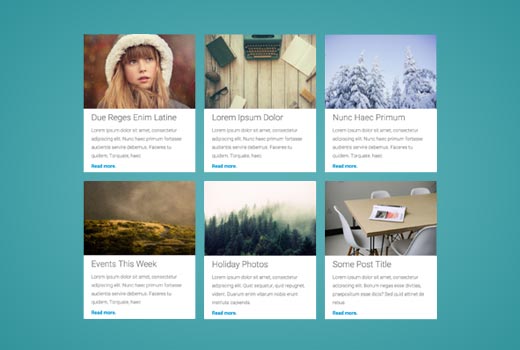

Displaying WordPress posts in grid layout


When Do You Need a Grid Layout for WordPress?


Traditional vertical layout of displaying posts works well for most websites. However this layout can take up a lot of space specially if you want to display a large number of posts.


If you are using a custom homepage for your WordPress site, then you may want to use a grid based layout to display your recent posts.


It will save space, so that you can add other items on your homepage. It also looks more visually pleasant due to prominently displayed featured images.


WordPress themes designed for magazine or photography websites already use grid based layout to display posts. However, if you are using a theme that doesn't support it, then you will need to create your own template for that. This would require you to learn PHP, HTML, CSS, etc.


Let's see how you can show WordPress posts in a grid layout on any theme without having to write any code.


Displaying WordPress Posts in a Grid Layout


First thing you need to do is install and activate the Post Grid plugin. For more details, see our step by step guide on how to install a WordPress plugin.


Upon activation, you need to visit Post Grid >> New Post Grid page to create your post grid.


Creating a new post grid


The post grid page is divided into different sections presented by the tabs on the top row. First you need to click on the 'Query Post' tab.


This is where you will define how you want the plugin to retrieve the posts for display.
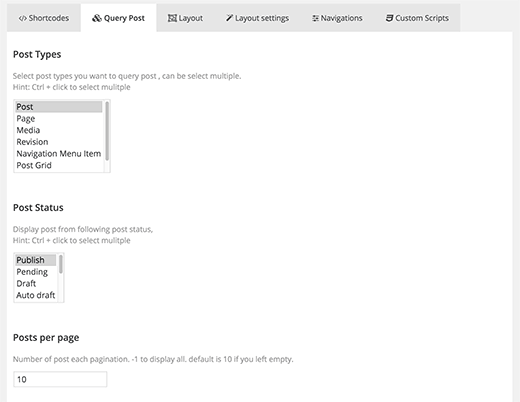

Query posts to be displayed in the grid


You can select the post type you want to display. By default, it will display 'posts' but you can choose pages if you want, or select any custom post type.


Next you need to click on the layout tab. This is where you can select how you would want to display your grid.
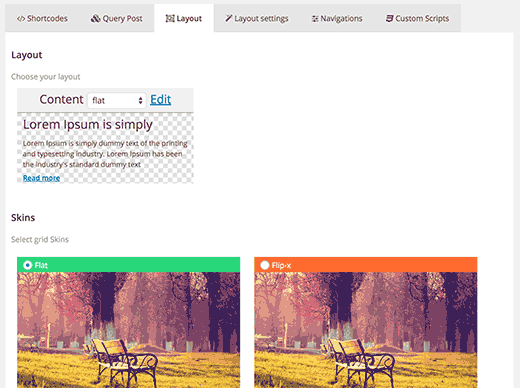

Choosing your grid layout


You can select the content layout. The plugin comes with a few choices like flat, flat center, flat right, etc. You can also click on the edit button and that will open the layout editor where you can create your own layouts.


You can choose from one of the 5 available skins. Some of the skins have cool visual effects that flip or rotate the image when a user takes mouse over to the thumbnail.


Now you need to click on the 'Layout Settings' tab. The settings here should work on most websites, but if your grid layout does not fit on your page, then this is where you can fix that.
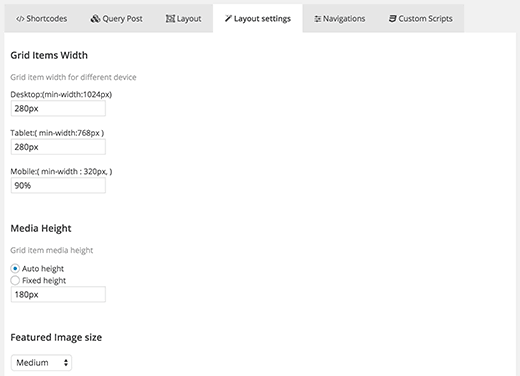

Grid layout settings


Finally, click on the navigation tab and select your pagination style.


Once you are done, simply click on the publish button. This will make your post grid available, and you can add it to the page where you want to display post grid.


Adding Posts Grid in a WordPress Page


On the post grid editor, you will see the tab shortcodes. Clicking on it will display a shortcode.
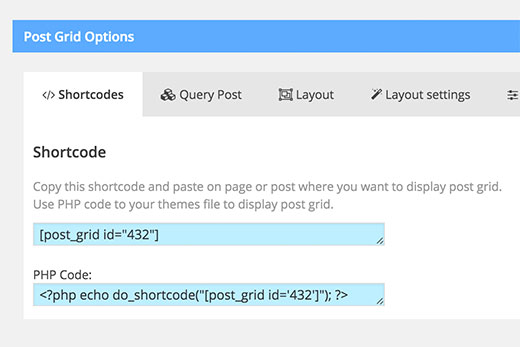

Copying the shortcode


Copy the shortcode and edit the WordPress page where you want to display your post grid. Paste the shortcode inside the content area where you want to display the grid.


Next, save your page by clicking on the update button. You can now visit your website to see the post grid in action.
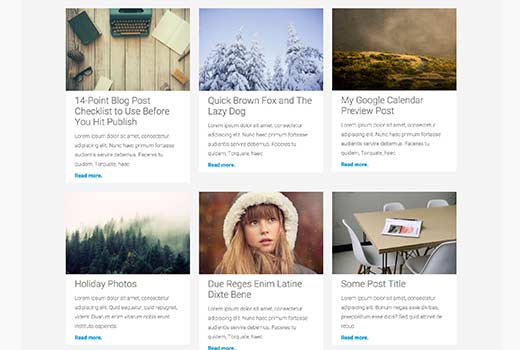

WordPress posts displayed in a grid layout


You can also use the PHP code if you want to add the post grid directly into your WordPress theme files.


That's all we hope this article helped you display your WordPress posts in a grid layout. You may also want to see our guide on adding multi-column content in WordPress posts.


If you liked this article, then please subscribe to our YouTube Channel for WordPress video tutorials. You can also find us on Twitter and Facebook.


The post How to Display Your WordPress Posts in a Grid Layout appeared first on WPBeginner.


30 Unbelievable Websites Created with the Jupiter Business WordPress Theme

Whether you're just beginning your own startup, blog or creative portfolio, or perhaps an already well-established corporation or small business, I've come across the Tenzing Norgay of WordPress themes to get you to the top of your own Everest. With an already large following of 28,000 users, the Jupiter business WordPress theme, created by Artbees Themes, has recently released its most updated version, the Jupiter V5, which stands apart from other business WordPress themes in more than just one way.


Predicting The Future For Mobile Developers

The web is going to die because mobile is winning. Email is going to die because everyone uses instant messaging. We've heard it so many times, but the reality is these channels will never die. What we are seeing is more - more channels, more traffic, and more ways of reaching audiences.


Last year saw developers grappling with the complexity associated with the explosion of these channels and the device operating systems that come with the never-ending list of new devices on the market.


As we look ahead, mobile developers need to focus on getting micro-moments right - a concept developed by Google to highlight the moment where user demands meet user access via mobile.


It's clear the smartphone has driven this behaviour and opportunity. So the question now is not what the possibilities are, but what can mobile developers do to maximise this?


WP Engine Vice President of Product Jason Jaynes examines the future for mobile developers in this Smart Chimps blog.


The post Predicting The Future For Mobile Developers appeared first on WP Engine.

Saturday, February 6, 2016

Customizing the WordPress Admin Experience for Novice Clients

If you're creating or setting up a site for clients or non-technical users, customizing the WordPress admin can help them manage their site and work with content more easily.


Most of the sites I build are for clients who aren't too familiar with WordPress and don't have a lot of time to spend working out how to manage their site, so I like to customize the dashboard and other admin screens to make life easier for them. I also like to add some branding to the admin screens, just to remind them who created their site for them!


The customizations I make will vary depending on the needs of each client but will normally include one or more of:


  • Branding the login screen with my own logo.

  • Adding branding to the admin screens, from something as simple as changing the header and footer text to going further and rebranding the colours and layout of the screens.

  • Removing dashboard widgets that my clients don't need and adding a new one with a helpful introduction to their site and what they need to know about it.

  • Removing admin menu items that clients don't need access to and adding new ones where needed.

  • Adding metaboxes to editing screens to help clients add data via custom fields.


WordPress provides you with a bunch of hooks and functions that can help you if you want to code it yourself, which is what I often do (adding everything to a special admin plugin), but if you don't fancy delving into the code or are in a hurry, then a plugin can be a simpler and quicker way to go things.


In this post, I'll identify my top 10 plugins for customising the WordPress admin screens. These range from the full-featured plugins like Ultimate Branding which let you make a whole heap of admin customizations, to small plugins like Login Logo that just do one simple job. Which you use will depend on your needs and those of your clients.


So let's start with the grandaddy of them all...


  • Ultimate Branding

    ultimate-branding

    Ultimate Branding has it all when it comes to admin customization. It not only lets you customize the admin screens, but also gives you the option of making customizations to the front end of the sites in your network to, if you're running Multisite.


    But Ultimate Branding isn't just for networks: you can use it on standard installations or networks to brand your admin screens, customize the login screen, change the dashboard, remove unwanted menu items and reorder existing ones, create your own admin bar, add help text and much more.


    All of these features can be turned on and off from the dashboard, so you only use what you need for your site, as you can see in the screenshot:


    Ultimate Branding plugin - turn modules on and off in the dashboard

  • White Label CMS

    white-label-cms

    White Label CMS is the most popular free plugin for customizing the admin screens. It lets you add your own login logo, remove and add dashboard widgets, hide meta boxes on editing screens, remove items from the admin menus and add custom CSS in places.


    It isn't as fully featured as Ultimate Branding and the single screen user interface can be a bit confusing, but it is free and offers the most functionality of all the available free plugins.


  • Admin Menu Editor

    admin-menu-editor

    If all you need to do is add, remove, reorder or edit items in the WordPress admin menu, then the Admin Menu Editor plugin makes it simple.


    The feature I like the most is the way it lets you change the text for each admin menu item: so for example if you're creating a site for a client who will be using Posts for news, you can change the Posts text in the admin menu to News. This works in a similar way to the Menus admin screen for navigation menus.


    You can also reorder menu items and hide them from users who don't have a specified capability level. With the Pro version you can move second-level menu items to other menus, which could be useful if you've removed a lot of menu items from two top level menus and want to combine the two.


  • Post Type Archive Link

    post-type-archives

    Something that often frustrates me about WordPress is how difficult it can be to add a link to the archive for a custom post type to the navigation menus. The only way to do it is to work out the URL of the relevant post type archive and then add that as a custom link, which can be tricky if you're not familiar with the way WordPress generates URLs.


    The Post Type Archive Link plugin solves this problem for you. It adds a box for your custom post types to the menus admin screen, letting you add a link to each post type's arrive to your navigation menu. If you're using WordPress as a CMS and have registered multiple post types, this can be very useful.


  • Media Library Assistant

    media-library-assistant

    If your site contains a lot of media files which you want to be able to manage more effectively than with the default media screens, the Media Library Assistant plugin can help.


    It lets you add categories and tags to media files and also displays information about each media file in the main Media screen, such as which post(s) each image is featured in, with a link to the post. This can be very useful if you need to replace or remove an image and you know the media file's name but not where you uploaded it.


  • Login Logo

    login-logo

    This plugin is a very simple one developed by WordPress core contributor Mark Jaquith. Login Logo lets you change the logo on the main WordPress login page by dropping a file called login-logo.png into the wp-content directory. Simply activate the plugin, upload the file and your logo will replace the WordPress logo.


    When you access this plugin on the plugin directory you'll see a warning that it hasn't been updated in over two years. Don't worry about this: the plugin is so simple that it doesn't need updating, and it's from a developer you can trust.


  • Dashboard Widget Order

    dashboard-widget-order

    Dashboard widgets can be really helpful - they give your users information about their site, let them quickly create new content, and help you get started with WordPress.


    But something I often find irritating is the fact that as a site owner or developer you can't determine the default order of the widgets. You can remove them and add new ones but without some complex code, you can't reorder them.


    The Dashboard Widget Order plugin solves this problem for you. It only works for Multisite but it lets you quickly reorder the widgets on your dashboard, meaning that every time a new site or user is created on your network, you know how the dashboard will appear to them.


  • Dashboard Feeds

    dashboard-feeds

    If like me, you're creating sites for clients who aren't web developers and aren't particularly interested in WordPress, then chances are you'll want to remove the 'WordPress News' dashboard widget. What's even more useful is to replace it with another news widget.


    The Dashboard Feeds plugin lets you do this. Add as many RSS feeds to it as you want and it will populate the dashboard with a widget for each of them. If you're creating sites for a particular industry, this might be a news feed for that industry. Or to promote your own work, you can use the RSS feed from your own site, to remind your users and clients what you're up to and encourage them to click through to your site.


Wrapping Up


Customizing the WordPress backend can make life easier for your clients and users and it can hep you to promote your business, either by improving your branding or displaying information about your business or content from your own site.


If you use these plugins, you'll be able to create an admin experience for your users and clients that projects a professional image and helps them manage and edit their sites.


Have you customized the backend of your site? What kinds of changes did you make? Are their customizations you always like to make for particular clients? Let us know what you think in the comments below.


At WP Engine, Technical Support Isn't A Dirty Word

It's easy to think that being on the Technical Support team at WP Engine means days and nights spent troubleshooting WordPress sites. And while as a company we do indeed do that 24/7, that's nowhere near the charter of our Support Teams.


At most companies, Technical Support is looked at like a call center. That is, you're there to answer calls, chats, or tickets in a certain amount of time and you have a quota of how many you need to respond to by typically following a script or automated prompts to provide the exact same information over and over again. Therefore, you're not strategic to the company, but rather a necessary evil required to keep the lights on, and a department to be treated like a machine versus a group of passionate human beings. It's robotic and lacks a human touch. And, frankly, it's why many approach the term "Technical Support" with skepticism.


At WP Engine, Technical Support is exactly the opposite. Our Technical Support-- our service -- is a big part of our product (and one of our clear differentiators in the managed WordPress hosting industry). Providing a world class experience is part and parcel of our business, and we include our support as part of that experience.


It's always true that, all else being equal, lowering the cost of service is good, because it increases profit margins and reduces waste (we all hate waste, don't we?). WP Engine will live or die by our ability to deliver a better experience to our customers, including better support, faster websites, more scalable websites, high-uptime websites, and secure websites; NOT by our ability to take an ever-increasing number of customer calls, chats, or tickets by an untrained staff because it helps the profit margin.


For us, Technical Support is an investment area, not a call center.


And the people and teams we're investing in support something amazing! Need proof?


WP Engine serves more than 2,000,000,000 (yes, that's 2 billion!) requests daily from thousands of servers in 13 data centers world-wide. We block 150 million malicious events and transfer 2 petabytes of data every month. We deploy 100 to 200 code changes every week, safely, at scale.


And we're still growing frighteningly fast, which means the challenges never stop coming. It's hard... but exciting. Scaling our business sees rare events become commonplace and requires an amazing group of individuals possessing the passion and ability to understand customer's needs before our customers do. Ensuring we're investing in the right people is what creates this incredible scale and growth.


Managing growth is a whole challenge in and of itself. We offer so many opportunities for our Technical Support team members to grow personally and professionally. Our Subject Matter Expert (SME) program, for example, currently consists of 15 subjects for which members of our Technical Support team own responsibility as the expert in that specific subject. We have SMEs on several topics, including CDN, MySQL, GeoIP, SSL, and Staging, just to name a few. These experts are our internal specialists, and ensure our teams continue to grow in knowledge of each subject and assist in the most challenging technical support requests. They also represent our customers when our Product and R&D teams are innovating on that subject. And it's not just these experts who contribute to the innovation of our business. Every single member of our Technical Support teams can create "suggestions" in our R&D system that are acted on, sometimes in a matter of days! And for those support techs brave enough to want to help make their suggestions reality, we offer a mentor program to help them develop the code and make their dreams become live on our platform!


But, we're not content to just scale the current business. Innovation is the heart of any successful tech company. If you stop innovating, even to the point of disrupting yourself, then you start withering. This is true in our Technical Support organization. Our Support Operations team also works with our Technical Support teams to leverage new technologies ranging from the latest cloud systems to brand new uses for WordPress using the WP REST API. Our world class service requires all kinds of people, including developers, admins, restaurant servers, and even professionally trained chefs (yes we have one on the team).


A lot of companies claim to provide the best service. Our customers tell us every single day that we do, just check our Twitter feed!


We're collecting amazing metrics around quality and satisfaction that are brand new to our industry so we can't write about them yet , but at our scale, these great metrics can't be achieved without amazing people volunteering their best from our Technical Support team. We all are necessary parts of our success.


Finally, we actively support contributing back to WordPress (naturally) and other communities, including Ansible, HHVM, Hadoop, nginx, and anything else we use. Contributing code is one way (our own John Dittmar and Anthony Burchell are WordPress Core Contributors) we support the community, along with speaking at events (our Technical Support team gave more than 15 talks at WordCamps in 2015 alone!) and attending other events across the globe. Some companies say they contribute to their communities, but for us it's our Fifth Company Value -- "Committed to Give Back" -- so we really mean it, and we invest time and money in it. It's not just lip service.


So if you're in Technical Support or love providing amazing customer service, and it sounds like a breath of fresh air to be treated as an investment, then you should apply now and see whether WP Engine might be your new home.


The post At WP Engine, Technical Support Isn't A Dirty Word appeared first on WP Engine.

How to Improve Accessibility on Your WordPress Site

Do you want to improve accessibility on your WordPress site? Most of the times accessibility gets neglected in our effort to create more beautiful websites. This creates problems and bad user experience for people with disabilities. In this article, we will show you how to improve accessibility on your WordPress site.


Improving accessibility in WordPress


What is Accessibility in Web Design in WordPress?


Accessibility is a term used to describe design techniques that make a product accessible to users with disabilities.


In web design, there are some common best practices that are recommended by experts to make websites more accessible. The same best practices can also be used in your own WordPress website.


By making your website more accessible, you can make it easier for many people to use your website without requiring assistance.


The problem is that most people using WordPress don't know much about web design, accessibility, or design standards. Majority of the people just install a theme that looks great and helps them do what they want to do. We at WPBeginner are guilty of this too, but we are working on improving things around our site.


Let's take a look at how you can improve the accessibility of your WordPress site without writing any code.


Improving Accessibility of Your WordPress Site


First thing you need to do is install and activate the WP Accessibility plugin.


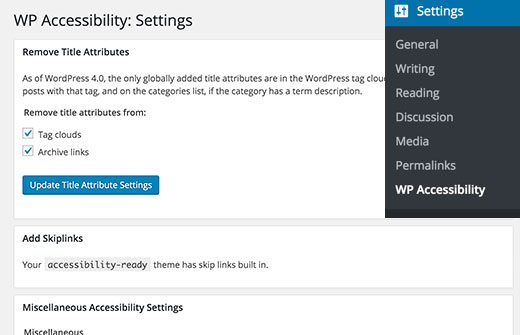
Upon activation, you need to go to Settings >> WP Accessibility to configure the plugin.


WP Accessibility Settings


The first section is to remove the title attribute from tag clouds and archives. The title attribute is considered to be useless by some accessibility experts. Most screen readers usually ignore the title attribute and instead read the anchor text.


In the next section, you can enable the skip link on your website. A skip link allows users to jump directly to the content. This is an extremely useful feature for people using screen readers. Without a skiplink they will have to hear through lots of things like navigation menus before they can reach the content part.


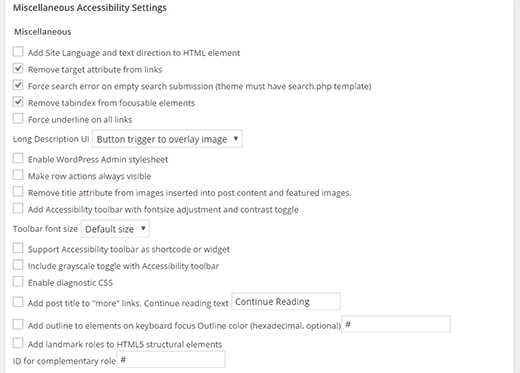
WP Accessibility provides a variety of accessibility settings, under miscellaneous accessibility settings section. You can go through each option and see if you need it on your site.


Miscellaneous Accessibility Settings


Some of these options will be checked by default. These options are removing target attribute from links, force search error on empty search submission, and removing tabindex from focusable elements.


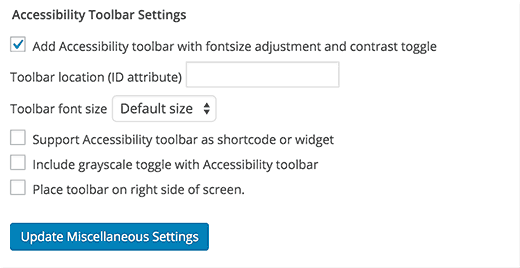
WP Accessibility plugin comes with an accessibility toolbar. Enabling it will add a toolbar on your website where users can resize fonts or view your site in high contrast color mode.


Adding an accessibility toolbar in WordPress


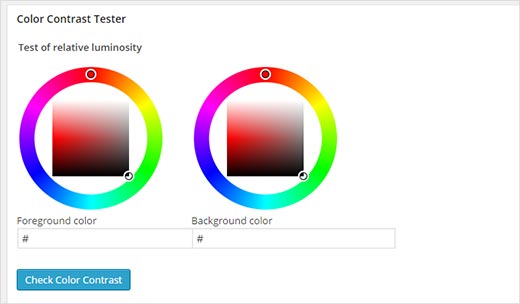
Lastly, you will see the color contrast checker tool. Using this tool, you can test the foreground and background color contrast ratio and whether they match the Web Content Accessibility Guidelines. You may also want to see our guide on choosing the perfect color scheme for your WordPress site.


Color contrast testing tool


You can find out the colors your theme is using in the stylesheet, or you can use Eye Dropper, a color picker extension for Google Chrome.


To learn more about the accessibility features of the plugin, take a look at WP Accessibility Plugins page on WordPress accessibility team website.


We hope this article helped you improve accessibility of your WordPress site. You may also want to check out our guide on how to add breadcrumb navigation links in WordPress.


If you liked this article, then please subscribe to our YouTube Channel for WordPress video tutorials. You can also find us on Twitter and Facebook.


The post How to Improve Accessibility on Your WordPress Site appeared first on WPBeginner.


Simplify Authors Payments Management with Post Pay Counter

If you are running a multi-author website, you certainly know that paying out writers is not exactly the most exciting task of your routine. You usually have to look at each post, compute its value depending on length, visits, ads revenues, and other custom criteria; then you need to sum up all post values from a single author and finally pay him. Repeat for all your writers. What if this waste of time could be eliminated?

The free WordPress plugin Post Pay Counter will get the hassle off of you. It automates every part of payments management and frees time that can be used for more productive matters.